
If you’ve ever felt overwhelmed juggling tasks, projects, deadlines, and team communication across multiple tools, you’re not alone. Many individuals and businesses struggle with productivity because their work is scattered across emails, spreadsheets, chat apps, and sticky notes. This is exactly where ClickUp comes in. ClickUp is an all‑in‑one productivity and project management tool designed to replace multiple apps with a single, flexible platform. Whether you’re a freelancer managing personal to‑do lists, a startup building products, or a large team running complex workflows, ClickUp can adapt to your needs. In this comprehensive beginner’s guide, you’ll learn how to use ClickUp step by step, understand its core features, explore pricing, apps, and use cases, and discover practical tips to get the most value from the platform. By the end of this article, you’ll feel confident using ClickUp for project management, task tracking, documentation, and even CRM.
What Is ClickUp?
 ClickUp is a cloud‑based project management and productivity tool developed by Mango Technologies Inc., doing business as ClickUp. It combines task management, collaboration, time tracking, documentation, reporting, and automation into one platform. Unlike traditional tools that focus on just one function, ClickUp aims to be a single source of truth for all your work. This is why many people consider ClickUp better than tools like Asana, Trello, Monday.com, Jira, or Notion for certain use cases.
What Can You Use ClickUp For?
One of the biggest reasons ClickUp has become so popular is its flexibility. ClickUp is not built for just one type of user or one industry. Instead, it is designed to adapt to almost any workflow, from simple personal task tracking to complex enterprise-level project management. Below is a more detailed breakdown of what you can use ClickUp for and how different users benefit from it.
1. Project Management
ClickUp is most commonly used as a project management tool. You can plan projects from start to finish, assign tasks, set deadlines, track progress, and ensure nothing falls through the cracks. With features like task dependencies, Gantt charts, milestones, and multiple views (List, Board, Calendar, Timeline), ClickUp works well for both simple projects and highly complex ones. This makes it suitable for industries such as marketing, software development, construction, operations, and consulting.
2. Task and To-Do List Management
ClickUp is also excellent for managing daily tasks and personal to-do lists. You can create tasks for anything—from simple reminders to recurring responsibilities—and organize them by priority, due date, or status. Many individuals use ClickUp as a replacement for traditional to-do list apps because it allows unlimited customization, recurring tasks, reminders, and progress tracking all in one place.
3. Team Collaboration and Workflow Management
For teams, ClickUp acts as a central collaboration hub. Team members can comment on tasks, tag each other, share files, and track updates in real time. Instead of switching between email, chat apps, and spreadsheets, teams can keep conversations and work together in ClickUp. This improves transparency, accountability, and overall productivity.
4. Content Planning and Editorial Calendars
ClickUp is widely used by bloggers, content creators, and marketing teams for content planning. You can manage blog posts, social media content, video production, and marketing campaigns. Using Calendar and Board views, you can visually plan publishing schedules, track content status (idea, draft, review, published), and collaborate with writers, editors, and designers.
5. CRM and Sales Pipeline Management
ClickUp can function as a lightweight but powerful CRM. By using custom fields, statuses, and automations, you can track leads, contacts, deals, and customer interactions. Startups, agencies, and small businesses often use ClickUp as a CRM alternative to reduce software costs while still maintaining visibility over their sales pipeline and client relationships.
6. Software Development and Agile Workflows
Development teams use ClickUp for agile project management, sprint planning, bug tracking, and roadmap planning. ClickUp supports Scrum and Kanban workflows, making it a strong alternative to tools like Jira. Features such as task dependencies, backlog management, GitHub integrations, and sprint reports help development teams stay organized and deliver faster.
7. Business Operations and Process Management
ClickUp is highly effective for managing internal business operations. You can document standard operating procedures (SOPs), assign operational tasks, track approvals, and monitor recurring processes. This makes ClickUp useful for HR, finance, operations, and administration teams who need structure and visibility into ongoing work.
8. Documentation and Knowledge Management
With ClickUp Docs, you can create and store documentation directly inside your workspace. This includes onboarding materials, training guides, meeting notes, policies, and internal wikis. Because Docs can be linked to tasks, teams can connect documentation directly to execution, reducing confusion and context switching.
9. Goal Tracking and Performance Management
ClickUp allows you to set goals and track progress using measurable targets. You can link tasks directly to goals, making it easy to see how daily work contributes to bigger objectives. This is particularly useful for managers, team leads, and business owners who want to monitor performance and ensure alignment with company goals.
10. Time Tracking and Productivity Analysis
ClickUp includes built-in time tracking, which helps individuals and teams understand how long tasks take to complete. This is valuable for freelancers, agencies, and service-based businesses that bill clients by time. Time tracking data can also be used to identify bottlenecks, improve estimates, and increase overall productivity.
11. Client and Agency Management
Agencies often use ClickUp to manage multiple clients and projects in one workspace. You can create separate folders or spaces for each client, track deliverables, deadlines, and communication, and generate reports. This setup helps agencies stay organized while providing better visibility and accountability for client work.
12. Personal Productivity and Life Management
Beyond business use, ClickUp is powerful for personal productivity. You can manage personal goals, habits, learning plans, fitness routines, finances, and side projects. Because ClickUp is fully customizable, many users treat it as a complete life management system rather than just a work tool. Whether you’re using ClickUp for personal use or for a growing business, the fundamentals remain the same: tasks, organization, visibility, and control over your work.
How to Sign Up for ClickUp
Getting started with ClickUp is simple and free.
- Start by clicking here to visit the ClickUp official website
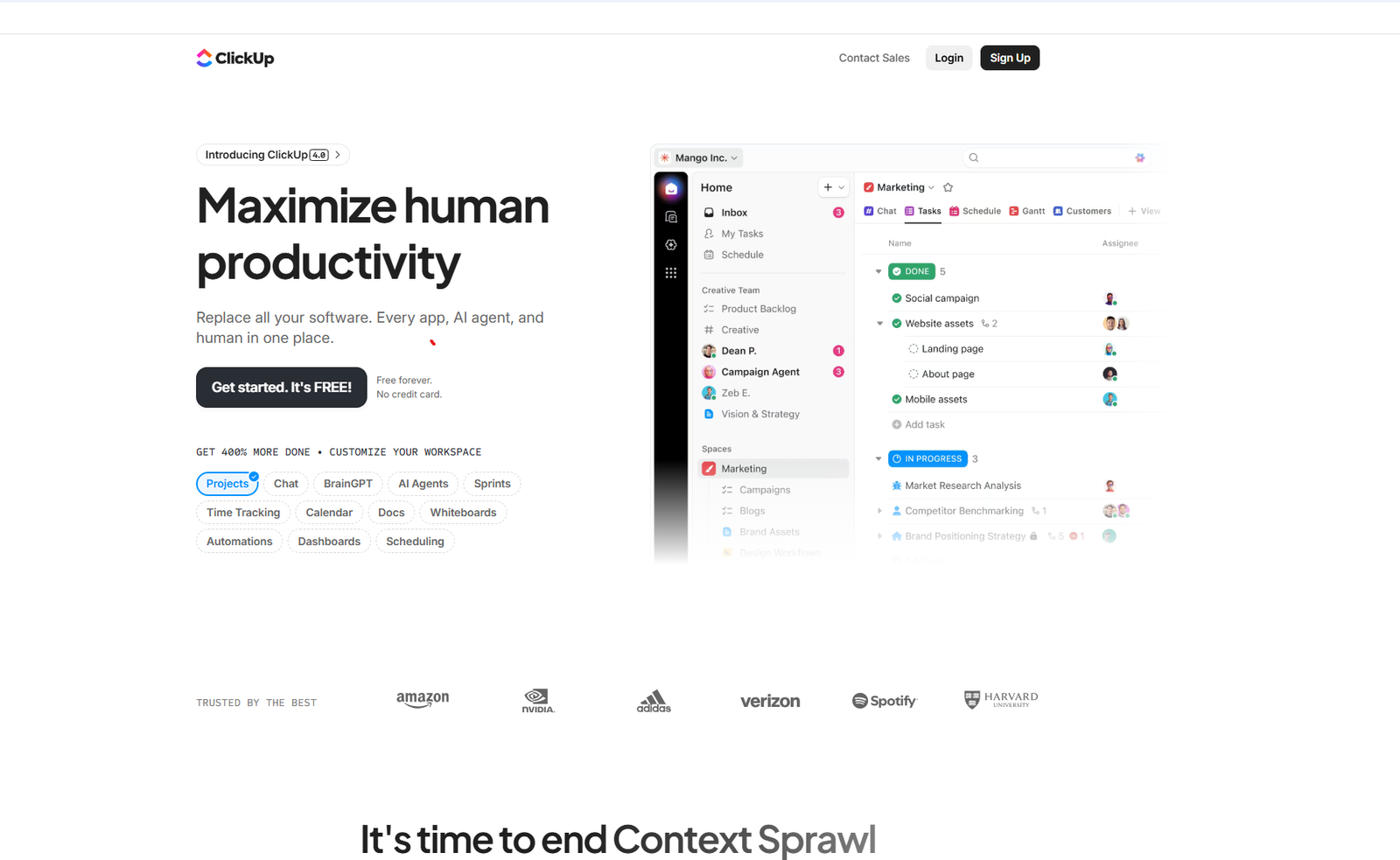
- Click Sign Up
- Enter your email address or sign up with Google
- Choose your workspace name
- Select how you plan to use ClickUp (personal, team, business, etc.)
ClickUp offers a free plan that is surprisingly powerful, making it ideal for beginners who want to test the platform without paying anything.
ClickUp Pricing Explained
 Before diving deeper, it’s important to understand ClickUp pricing so you know which plan fits your needs.
ClickUp Free Plan
The ClickUp Free plan includes:
- Unlimited tasks
- Unlimited members
- 100MB storage
- Core task management features
- Real‑time collaboration
This plan is perfect for individuals, students, or small teams just getting started.
ClickUp Paid Plans
ClickUp also offers several paid plans, including Unlimited, Business, and Enterprise. These plans unlock advanced features like:
- Unlimited storage
- Advanced reporting
- Time tracking
- Automations
- CRM tools
- Goals and dashboards
For most beginners and startups, the ClickUp Unlimited plan offers the best value for money.
ClickUp Web, Desktop, and Mobile Apps
ClickUp is available on multiple platforms, ensuring you can access your work anytime, anywhere.
ClickUp Web App
The web version works directly in your browser and is the fastest way to get started. No download required.
ClickUp Desktop App
You can download the ClickUp desktop app for:
- Windows
- macOS
The desktop app offers better performance, offline access, and fewer distractions compared to the browser version.
ClickUp Mobile App
The ClickUp mobile app is available for Android and iOS. It’s ideal for checking tasks, updating statuses, and staying productive on the go.
Understanding ClickUp’s Hierarchy (Very Important)
One of the most confusing parts for beginners is ClickUp’s hierarchy. Once you understand it, everything else becomes much easier.
1. Workspace
Your workspace is the top‑level container. It represents your entire organization or personal setup.
2. Spaces
Spaces are major categories such as Marketing, Sales, Development, or Personal.
3. Folders
Folders organize related projects within a space.
4. Lists
Lists contain your actual tasks. Think of them as project task lists.
5. Tasks and Subtasks
Tasks are individual pieces of work. Subtasks break tasks into smaller steps. This hierarchy allows ClickUp to scale from simple to extremely complex workflows.
How to Create Your First Project in ClickUp
Creating a project in ClickUp is straightforward.
- Choose a Space
- Create a Folder (optional)
- Create a List
- Start adding tasks
You can name your project, customize statuses, and assign tasks to yourself or team members.
How to Create and Manage Tasks in ClickUp
Tasks are the foundation of ClickUp.
Creating a Task
- Click the + Task button
- Add a task name
- Assign it to someone
- Set a due date
- Choose a priority
Task Details You Should Use
Each task can include:
- Descriptions
- Comments
- Attachments
- Checklists
- Custom fields
- Time tracking
Using these features helps keep all relevant information in one place.
ClickUp Views Explained
ClickUp offers multiple views so you can see your work the way you prefer.
List View
The classic task list view, perfect for beginners.
Board (Kanban) View
Great for visual workflows and agile teams.
Calendar View
Ideal for deadlines, content planning, and schedules.
Gantt View
Useful for project timelines and dependencies.
Mind Map View
Helps with brainstorming and planning ideas visually. You can switch between views instantly without duplicating work.
How to Use ClickUp for Project Management
ClickUp shines as a project management tool.
Step‑by‑Step Project Management Workflow
- Create a project list
- Define task statuses
- Assign tasks to team members
- Set deadlines and priorities
- Track progress using views
- Review reports and dashboards
This workflow works for almost any industry.
ClickUp Docs: Creating and Managing Documents
ClickUp Docs allows you to create documents directly inside ClickUp. You can use Docs for:
- Meeting notes
- SOPs
- Knowledge bases
- Project documentation
- Content drafts
Docs support real‑time collaboration, comments, and task linking, making them far more powerful than traditional documents.
Using ClickUp as a CRM
Many beginners are surprised to learn that ClickUp can be used as a CRM.
How ClickUp Works as a CRM
- Create a sales pipeline using lists or boards
- Use custom fields for contact details
- Track deals through stages
- Assign follow‑ups as tasks
- Generate reports
This makes ClickUp a cost‑effective CRM solution for startups and agencies.
ClickUp Automations for Beginners
ClickUp automations help reduce repetitive work. Examples include:
- Automatically assigning tasks
- Changing statuses when conditions are met
- Sending notifications
You don’t need technical skills to set up automations, making them beginner‑friendly.
ClickUp Integrations (Zapier and More)
ClickUp integrates with many popular tools, including:
- Zapier
- Google Drive
- Slack
- GitHub
- Zoom
Using Zapier with ClickUp allows you to connect hundreds of apps and automate workflows.
ClickUp Dashboards and Reporting
Dashboards give you a high‑level overview of your work. You can track:
- Task progress
- Team workload
- Time tracked
- Project status
Dashboards are especially useful for managers and business owners.
ClickUp for Different Use Cases
ClickUp for Personal Use
Perfect for to‑do lists, habit tracking, and personal projects.
ClickUp for Teams
Ideal for collaboration, task assignment, and communication.
ClickUp for Startups
Helps manage product development, marketing, and operations in one place.
ClickUp for Agencies
Excellent for client projects, reporting, and CRM workflows.
ClickUp vs Other Tools
When choosing a project management or productivity tool, beginners often compare ClickUp with popular alternatives like Asana, Monday.com, Jira, Notion, and Trello. Each tool has its strengths, but ClickUp stands out because of its all-in-one approach. Below is a detailed comparison to help you understand how ClickUp differs from other tools and when it makes the most sense to use it.
ClickUp vs Asana
 Asana is a well-known project management tool focused on task tracking and team collaboration. It is clean, simple, and easy to use, especially for beginners. Where ClickUp is better:
- ClickUp offers more customization options, including custom fields, task statuses, and views
- Built-in features like Docs, Goals, Dashboards, and Time Tracking reduce the need for third-party tools
- ClickUp pricing is generally more affordable as teams scale
Where Asana is better:
- Simpler interface with less initial learning curve
- Better for teams that want minimal setup and fewer features
Best choice:
- Choose ClickUp if you want flexibility and long-term scalability
- Choose Asana if you want simplicity and quick adoption
ClickUp vs Monday.com
 Monday.com focuses heavily on visual project tracking with colorful boards and templates. It is popular with non-technical teams and managers. Where ClickUp is better:
- More powerful task management and hierarchy
- Better suited for complex workflows and large projects
- More features included in lower pricing tiers
Where Monday.com is better:
- Highly visual and beginner-friendly interface
- Easier onboarding for teams new to project management tools
Best choice:
- ClickUp is better for teams that need depth and flexibility
- Monday.com is better for teams that prioritize visual simplicity
ClickUp vs Jira
 Jira is primarily built for software development and agile teams. It is powerful but often overwhelming for non-developers. Where ClickUp is better:
- Easier to use for beginners and non-technical users
- More versatile for teams outside software development
- Combines agile tools with general project management
Where Jira is better:
- Advanced agile and issue tracking features
- Deep integration with developer tools
Best choice:
- Use ClickUp if you want agile features without complexity
- Use Jira if you are a dedicated software development team with advanced needs
ClickUp vs Notion
 Notion is known for documentation, note-taking, and flexible databases. Many users compare ClickUp and Notion for productivity systems. Where ClickUp is better:
- Stronger task and project management capabilities
- Built-in automations, time tracking, and reporting
- Better suited for teams managing deadlines and workflows
Where Notion is better:
- More flexible for notes, wikis, and personal knowledge management
- Better for content-heavy documentation
Best choice:
- ClickUp is better for execution and task tracking
- Notion is better for documentation and knowledge bases
ClickUp vs Trello
 Trello is a simple Kanban-based tool that is easy to understand and quick to set up. Where ClickUp is better:
- Supports multiple views beyond Kanban
- Better for growing teams and complex projects
- Includes advanced features like dependencies, goals, and dashboards
Where Trello is better:
- Extremely simple and beginner-friendly
- Ideal for small projects and basic task tracking
Best choice:
- Choose ClickUp if you plan to scale your work
- Choose Trello if you only need basic task boards
Summary: Why Many Users Choose ClickUp
ClickUp is often chosen because it replaces multiple tools with one platform. Instead of paying for separate apps for tasks, docs, time tracking, CRM, and reporting, ClickUp brings everything together. While this flexibility can feel overwhelming at first, it becomes a major advantage as your needs grow. For beginners who want a tool that can evolve with them, ClickUp offers one of the best long-term solutions available, reducing costs and complexity.
Common Beginner Mistakes to Avoid
- Overcomplicating the setup
- Creating too many spaces
- Ignoring task descriptions
- Not using views properly
Start simple and scale gradually.
Learning ClickUp Faster: ClickUp University
ClickUp University offers free courses, tutorials, and guides to help beginners master the platform quickly.